
Codex Usage Desktop Guide: See Where Your Codex Tokens and Quota Go
If you use Codex every day, you will eventually ask: how much of my 5-hour quota is left, when does it reset, and which project burns the most tokens?
Codex Usage Desktop is an open-source desktop app by my friend itvincent that answers exactly that. It reads the Codex session logs already on your computer and turns them into a local dashboard. No API key, no account, and your logs are never uploaded.
This guide is adapted from the project's README. Treat the official repository as the source of truth.
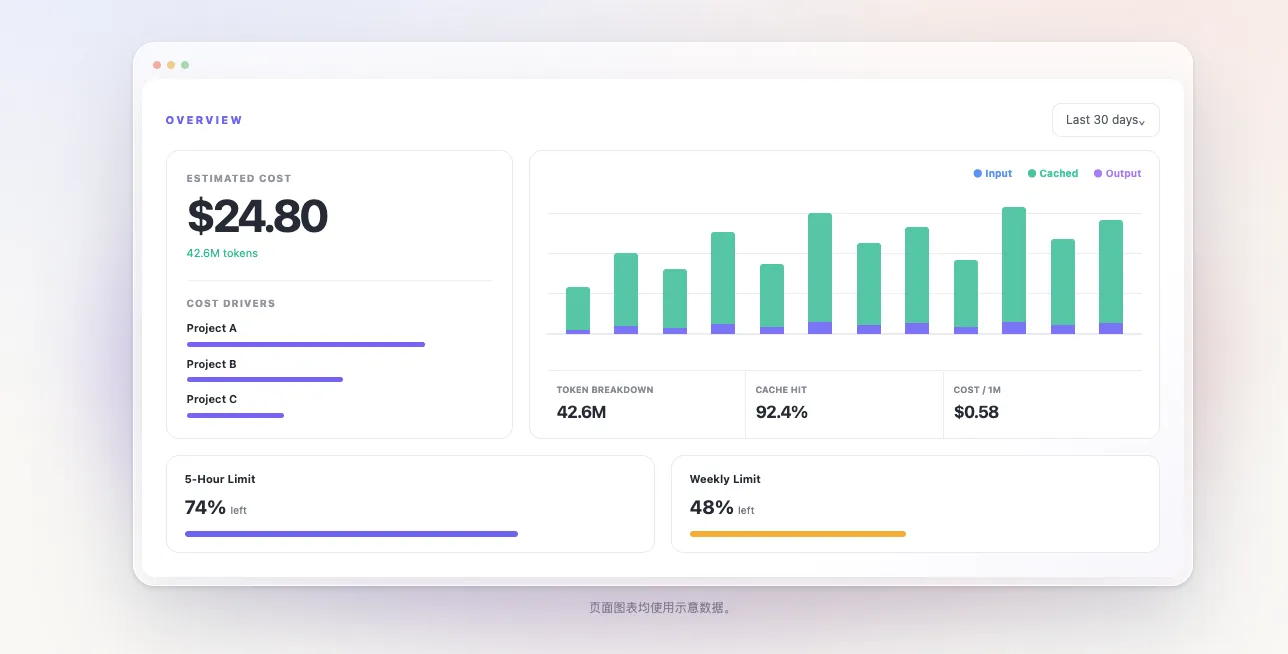 Sample data from the official site.
What it answers
- How much 5-hour and weekly quota is left, and when it resets
- Which project, model or session used the most tokens
- How today compares with yesterday
- What actually happened inside a long Codex session
Main features
Usage overview
Skip the JSONL logs and see:
- Total tokens and estimated cost
- Input, output and cached tokens, plus cache hit rate
- Daily and monthly trends, and daily average
- Custom date ranges
Live quota
Know your remaining quota before you hit the limit:
- Live 5-hour quota and weekly or monthly quota
- Remaining quota, reset time and countdown
- Available reset counts
Quota can also sit in the macOS menu bar or Windows system tray, so you don't need to keep the dashboard open. Live quota uses your existing local Codex login, so sign in to the CLI first.
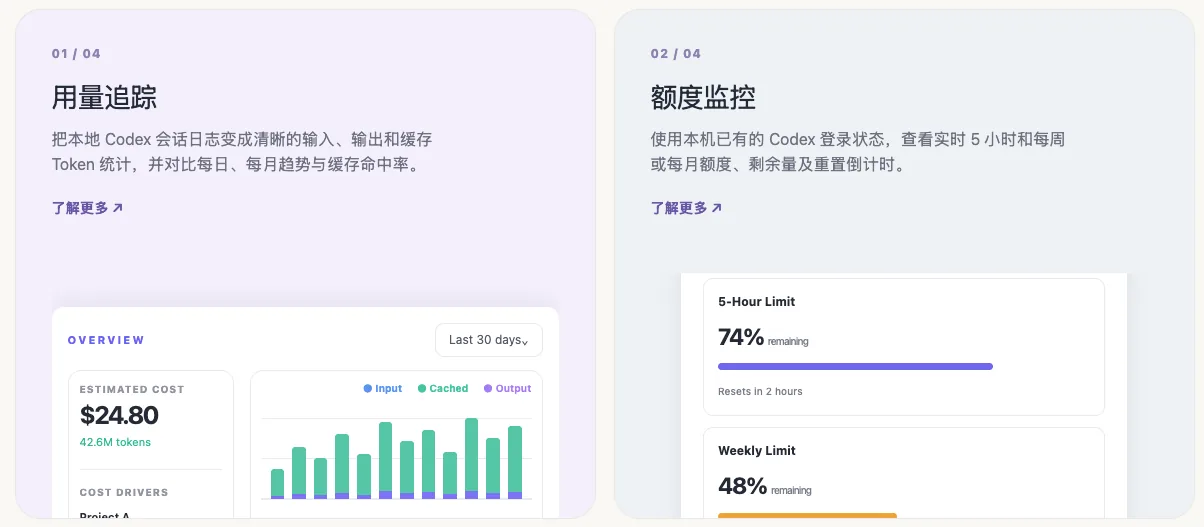
Break down token usage
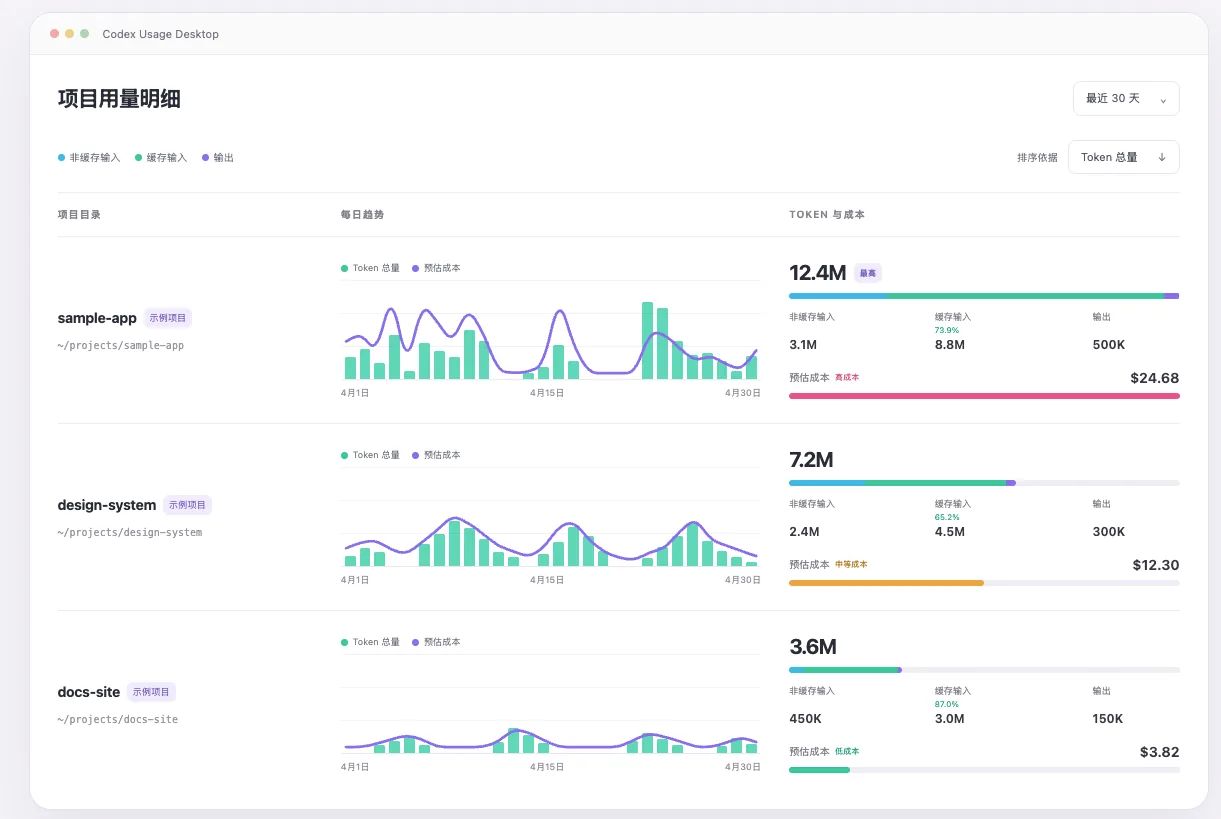
Split usage by project, model, day, month or session.
- Projects: compare daily trends side by side, see uncached input, cached input, output and estimated cost, then drill into date-grouped sessions.
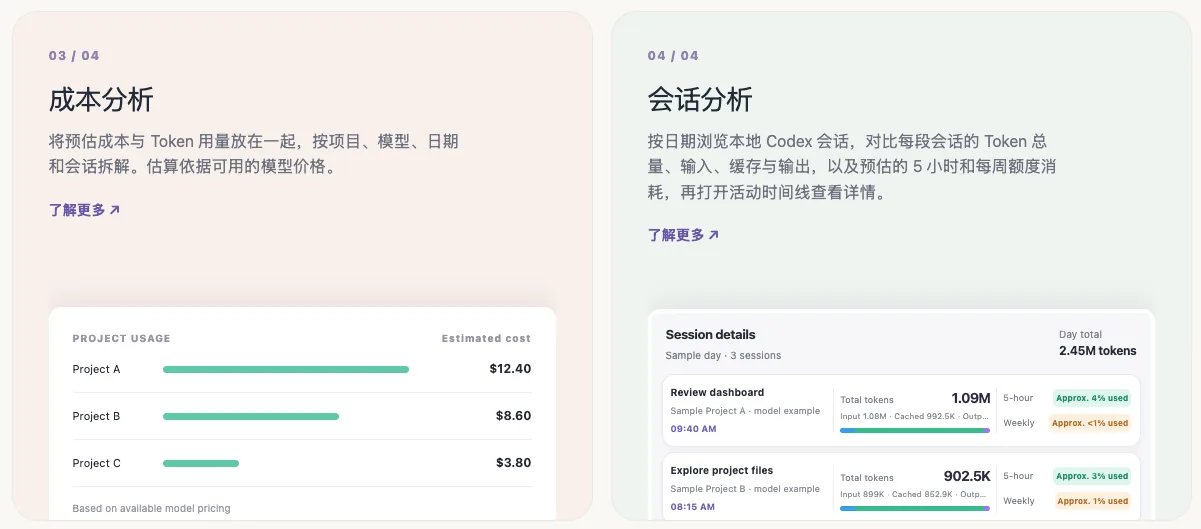
- Models: see estimated 5-hour and weekly quota use per model, including per million tokens. The estimate comes from sessions that used a single model, and concurrent sessions can skew attribution.
Session details
Search sessions by title, project and model. Open one to see:
- Token use, estimated cost and quota use
- Command and tool activity, web searches
- Patches and code diffs
- Long-running commands and sub-agent hierarchy
- A replay timeline
You see both what Codex did and how much usage it cost.
Quota reset history
Review the latest official token reset announcement, recent reset events, and daily remaining-quota changes observed in your session logs.
More
- Native macOS and Windows apps, launch at login, automatic update checks
- UI in Simplified Chinese, Traditional Chinese, English and Japanese, with light and dark themes
- Export the selected range to Excel or Markdown
Install
Download from GitHub Releases or via the website.
Windows 10/11 x64
Download the Windows installer and follow the prompts. It installs for the current user only.
The installer is not Authenticode-signed, so Microsoft Defender SmartScreen may warn about an unrecognized app. Make sure the file comes from the official repository's GitHub Release before continuing.
The app prefers native Windows sessions in %USERPROFILE%\.codex. If none exist, it checks the default WSL distribution. The two are never merged, to avoid double counting.
macOS
Pick the DMG for your chip:
| Mac | Build |
|---|---|
| Apple silicon (M1 and later) | ARM64 DMG |
| Intel | x64 DMG |
Open the DMG and move the app into Applications. If macOS blocks the first launch, allow it in System Settings → Privacy & Security.
Homebrew
brew tap itvincent-git/codex-usage-desktop https://github.com/itvincent-git/codex-usage-desktop
brew install --cask itvincent-git/codex-usage-desktop/codex-usage-desktop
To upgrade later:
brew update
brew upgrade --cask itvincent-git/codex-usage-desktop/codex-usage-desktop
One-line install (macOS)
The script detects your chip, downloads the matching DMG and copies the app to /Applications:
curl -fsSL https://raw.githubusercontent.com/itvincent-git/codex-usage-desktop/main/scripts/install.sh | shAs with any piped script, read it before you run it.
Get started in three steps
- Use the Codex CLI as usual, so session logs exist under
~/.codex(%USERPROFILE%\.codexon Windows). - Open the app. It scans the logs and builds a local SQLite index.
- Pick a time range, then explore the model, project, daily, monthly and session pages.
Live account quota needs the Codex CLI to be signed in. If it isn't, run:
codex auth loginThen refresh the dashboard.
Privacy: where your data goes
Codex sessions can contain sensitive prompts, code and project details, so this matters:
- Source files under
~/.codexare only read locally. They are never uploaded, shared or modified. - No OpenAI or LiteLLM API key is needed.
- Aggregated stats are stored in a local SQLite cache.
- Live quota queries ChatGPT directly using your local login. Session logs are not sent with the request.
- The network is also used for fonts, model pricing, quota forecasts and update checks. None of those requests include session logs or usage data.
Limits
- Apple silicon and Intel Macs and Windows 10/11 x64 are supported. There is no Linux package.
- Costs are estimates from local logs and available model pricing. Unknown models show zero estimated cost.
- Session details depend on what each local log actually recorded.
Advanced options
Environment variables:
| Variable | Purpose |
|---|---|
CODEX_HOME | Codex home directory. When set, it takes top priority and disables Windows/WSL auto-discovery |
CODEX_CLI_PATH | Path to the Codex CLI executable or wrapper |
CODEX_USAGE_TIMEZONE | Time zone for daily stats. Defaults to the system time zone, falls back to UTC |
Links
- Website: codex-usage.itvincent.net
- Source: itvincent-git/codex-usage-desktop
- More from friends: Friends